
The calendar view
On the trip page, tap Calendar at the top. Every trip day shows on one month, with a plane on flight days and a bed on hotel nights. Tap a day to open it. The view is free for everyone.
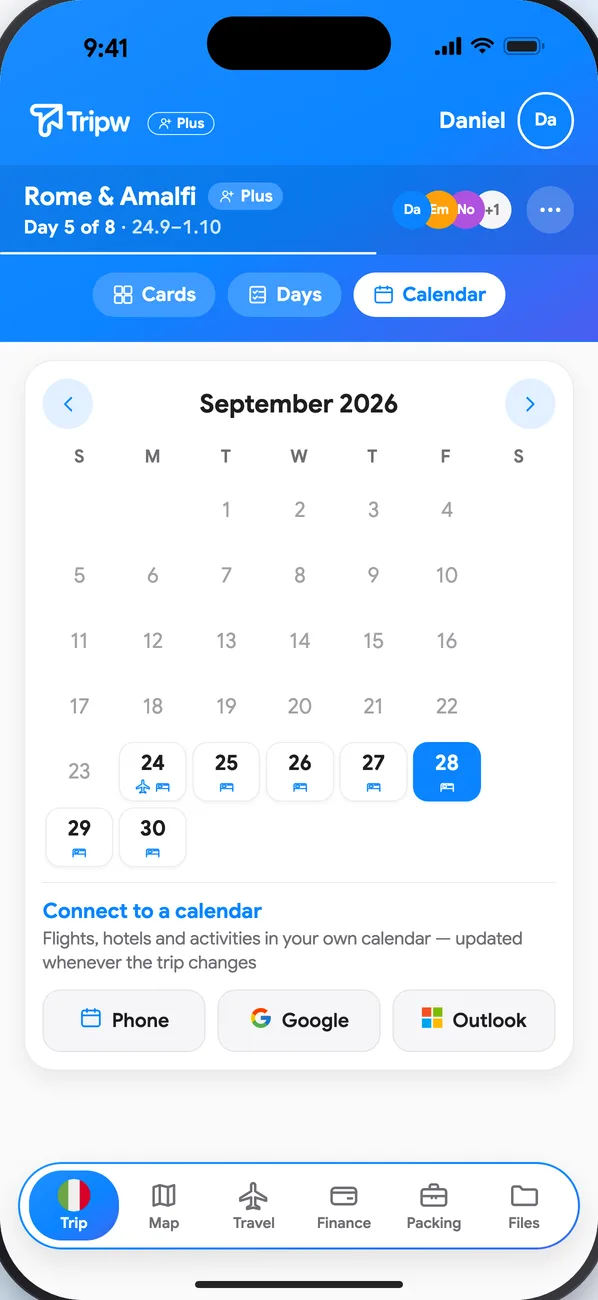
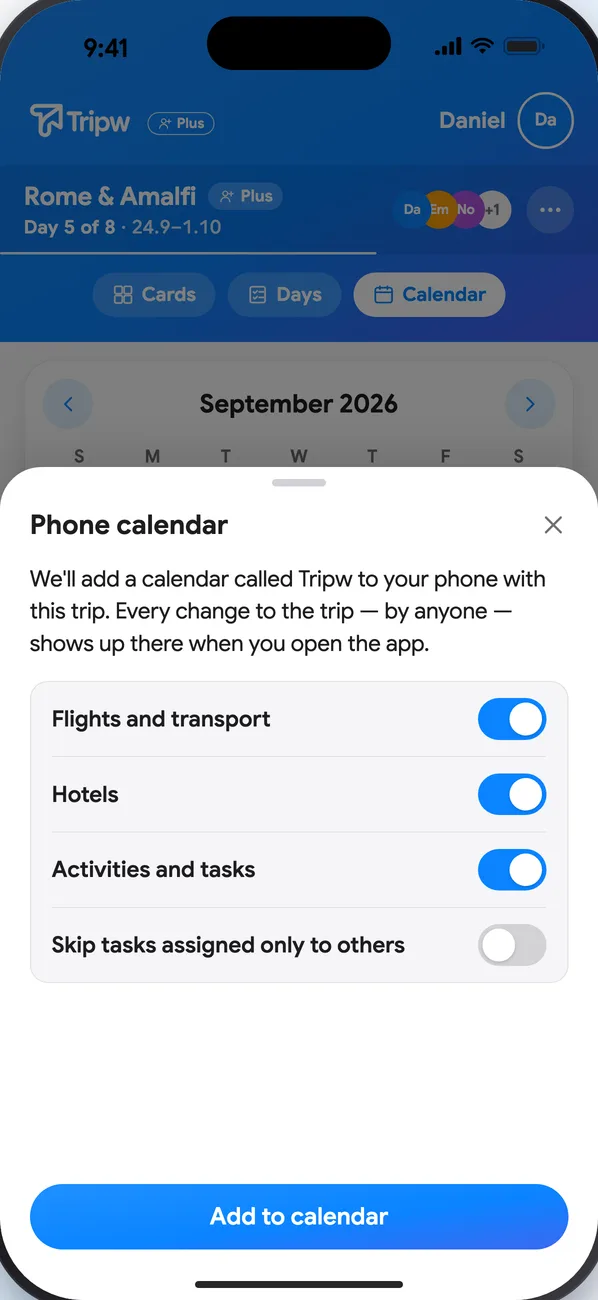
In your phone's calendar (free)
- At the bottom of the calendar view, under Connect to a calendar, tap Phone.
- Choose what to include: flights and transport, hotels, activities, and if you like, Skip tasks assigned only to others.
- Tap Add to calendar and allow calendar access the first time.
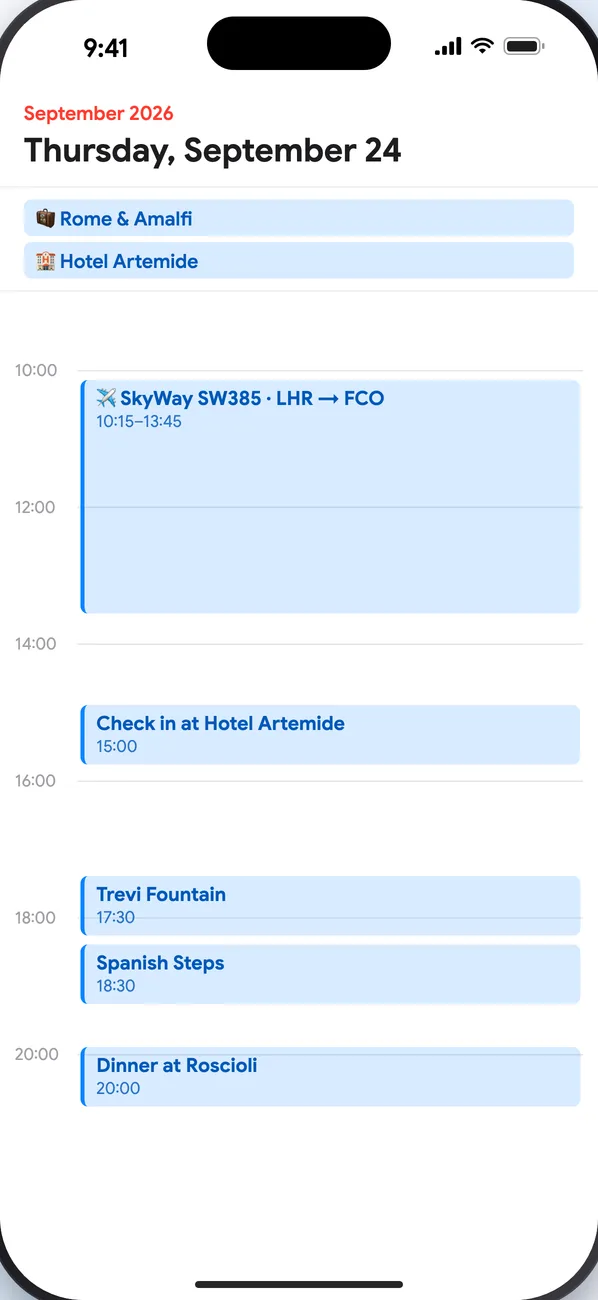
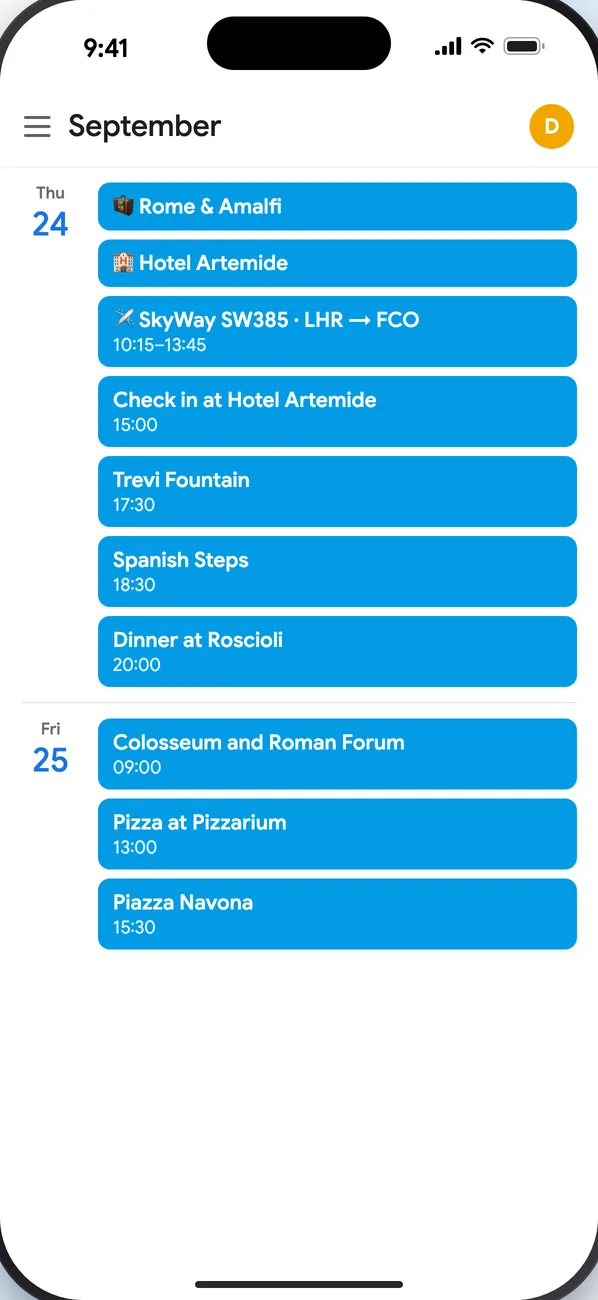
A calendar called Tripw appears on your phone with the flights (at the right times for each time zone), hotel stays as all-day events, and the activities. Every change to the trip, by anyone, reaches the calendar when you open the app. Works on iPhone and Android.
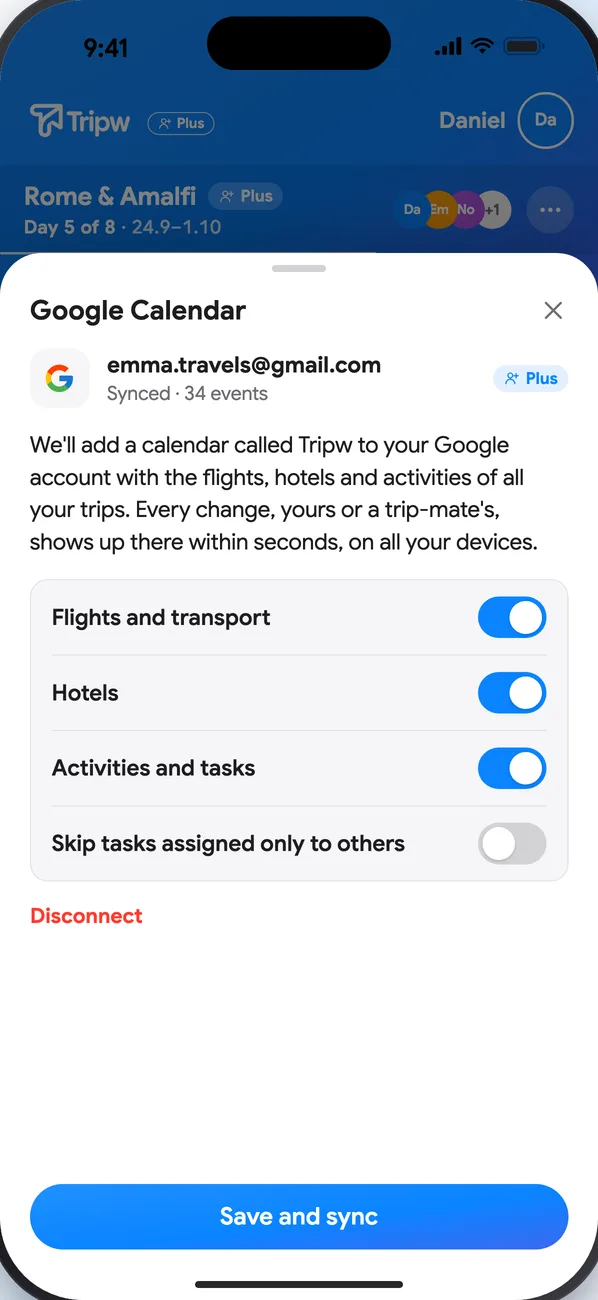
Direct sync to Google Calendar and Outlook (Plus)
- Under Connect to a calendar, tap Google or Outlook.
- Choose what to include and tap Connect.
- Sign in and allow calendar access.
A calendar called Tripw appears in your account with all your trips. Every change reaches it within seconds, on all your devices, even without opening the app. A connected calendar's button shows a green check.
Privacy and disconnecting
- On Google, Tripw can access only the calendar it created, not your other calendars. On Outlook it doesn't read your other calendars.
- The sync is one way: changes you make in the Tripw calendar itself are replaced by the next update from the trip. Change the trip, and the calendar follows.
- To stop, open that calendar's sheet and tap Remove from calendar or Disconnect. The Tripw calendar is deleted; everything else stays as it was.